This is a basic skinning tutorial, how to do it quick and easy.
If you would like to see what Dan Samuel has said on this, visit Dan Skinning Tutorial
First you need to decide what kind of skin your doing.
There are several ways to skinning, the basics are:
* An original skin - This is a skin drawn by hand, something no one else has ever done before.
* A non-original - Basically taking other pictures and putting them on your frame. This is the easy way, the lazy way, the way most people do it.
If your going to do it this way it is best not to just take a picture that looks cool and put it in your frame and leave it.
At the very least to alittle modification, change the colors or something. Some examples of taking pictures and putting
them in here would be getting pictures from MCM, or Sprite Sheets.
A few things you will / might need in order to skin:
- A image editing program (MS Paint works well for this, and almost everyone has it)
- WoS Viewer - Dan made alittle program to help you line up your skins and make sure that they will work properly once they get onto WoS. This is much
easier for testing your skins to make sure that they work than opening WoS and putting them on. You can download this
Here
- Mugen Character Maker - I so happen to have one Here
- Mugen SSF's if your going to use Mugen - I happen to have one Here for use of this tutorial.
- Skin Frames - Dan has a nice ZIP of abunch of skin frames Here But the skins he has there do not have a magic frame.
I have uploaded four different sizes of skin frames that work well for me, they are:
Large
Medium
Small
Mini
Lets start off by the easier way, since most likely this is how you will be skinning to start off with at least.
Ok, first get one of the skin frames from above, I'd use the medium for this skin I think.
Open up that skin frame in paint, or your paint-like program. Download MCM, and open it. Save the SFF I provided, then (im MCM) click at the top SFF,
then click load. After that go to the location of the SFF I have provided and load it. Now you should see this:
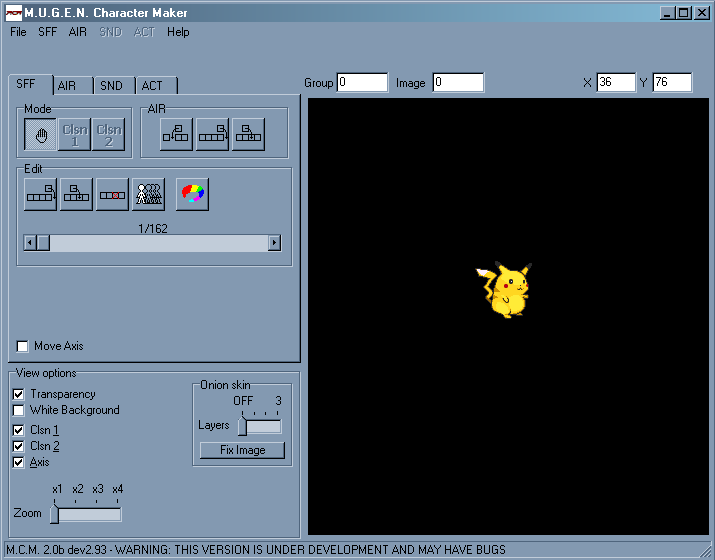
Now, about now your probably going insane screaming "HE GAVE US A PIKACHU SFF", but please calm down, Pikachu is easy to do and show you different things.
Next thing you want to do is go back to the skin frame you opened, a skin frame has a certain place for each thing (Map, waiting, Fighting, hurt, talking, credits, and Magic)
now they are on the skin like this:

Now l that you know what goes where, let that sit there and we go back to the Mugen you should still have open, when you go to it,
press the print screen button on your keyboard, then open another window of Paint, and paste the screen shot there, then copy the small
Pikachu only, and go to the Paint window that has the skin in it, paste the Pikachu in the waiting box. Now he should be in a black box which
we don’t need there, so use the tool that copies the background, and make the black box the same as the background. Now the only problem with
our Pikachu friend is he is facing the wrong Direction, put the little crop box around pika only, and right click, then go down to Flip / Rotate,
click Flip horizontal, and then ok, now Pikachu is facing the right way. The next thing your going to want for the waiting box is a shadow for
Pikachu, so put the nice little box around pika again, and click Copy, then paste him. After than right click on the new pica you made, and right
click him, go down to stretch / skew, click in the verticle box and make it 15 instead of 100, then click ok. Move the new “squashed” Pikachu
directly under the original one, in the shadow box. Then unless you want a yellow shadow go down there and re-color the entire squashed pika
black, your skin should then look something like this

Now your skin is starting to look like something. Now next thing we do is go back to MCM. Scroll through the frames of pika until you find some you would
want for other frames and do the same we did with the first one. After I’m done with it, it looks like this:

Now yours probably doesn’t look like mine, but that’s ok, infact if it looks exactly like mine, then you copied mine. Now you might be thinking, what
about that Map area SK? Well, that’s an easy part to do put a box around the first frame again, copy him, and Stretch / Skew him to 30 x 30 then
place him in each of the 9 boxes, and that’s all to that part, after that all that is left is the credits area, here you are going to want to put
maybe your name, to show you’re the one who did it, possibly a small picture here, this area does not show when you are in game.
So you can put whatever here. Mine looks like this all done up pretty :-P

And that’s all it take to make a skin that way, now I name my skins (SK) 'Skin Name', like this one is named (SK) Pikachu you will most likely want to put
something like that in front of all of your skins to identify them better.
Some of the Frequently asked questions on skinning would be:
- That Green color SUCKS! Can I change it to hot pink?
Yes, but you need to make sure that you change the pixel at the top left corner to that same color. That pixel sets the transparentcy of the skin.
Meaning whatever color is there will be transparent anywhere else on the skin when you go into WoS. Some things you might want to do is make
or skin look as if it has no eyes, you can do that with the transparentcy color.
- After I make a skin it looks like it hovers when I put it into the game, I hate that, can I make it stop?
Yes, all you need to do is make the second pixel (the one next to the one described in the previous question) the same color as the background.
(transparency Color)
- I don't like pikachu being yellow, how can I make him Blue?
Changing the color of Pickachu is easy, one of the best and easiest ways (expecially if there are alot of pixels by themselves) is to do it in paint.
All you need to do is open your skin in paint. With the pick color tool (eyedropper) you pick the color you want to change. Then you pick as your secondary color (right click) the color you want to replace it with. At this point you get the eraser tool, but instead of erasing normal with the left-click, use the right click. This way it only changes the color your choose to change.
If you have any more questions, please feel free to visit the forums and ask, or E-mail Me